Getting Started
Set up EQ Annotator in 4 steps. Takes about 5 minutes.
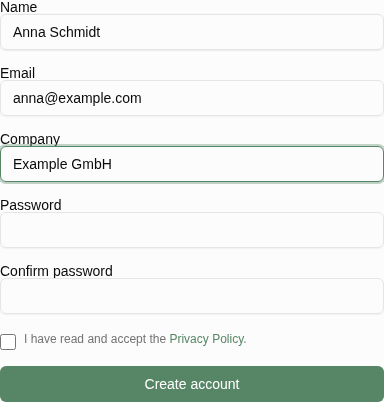
Create your EQ Annotator account
Go to www.eqannotator.com/register and create your account. Enter your name, email, and choose a password — your organisation is created later when you connect Paligo.
After registration, check your inbox for a verification email and click the confirmation link.
Get your Paligo API key
You need a Paligo API key to connect EQ Annotator with your Paligo instance.
- Log in to your Paligo instance (e.g.
yourcompany.paligoapp.com) - Click your profile icon in the top right corner
- Select "Edit Profile"
- Scroll down to the "API" section
- Click "Generate API Key" (or copy your existing key)
- Copy the API key — you will need it in the next step
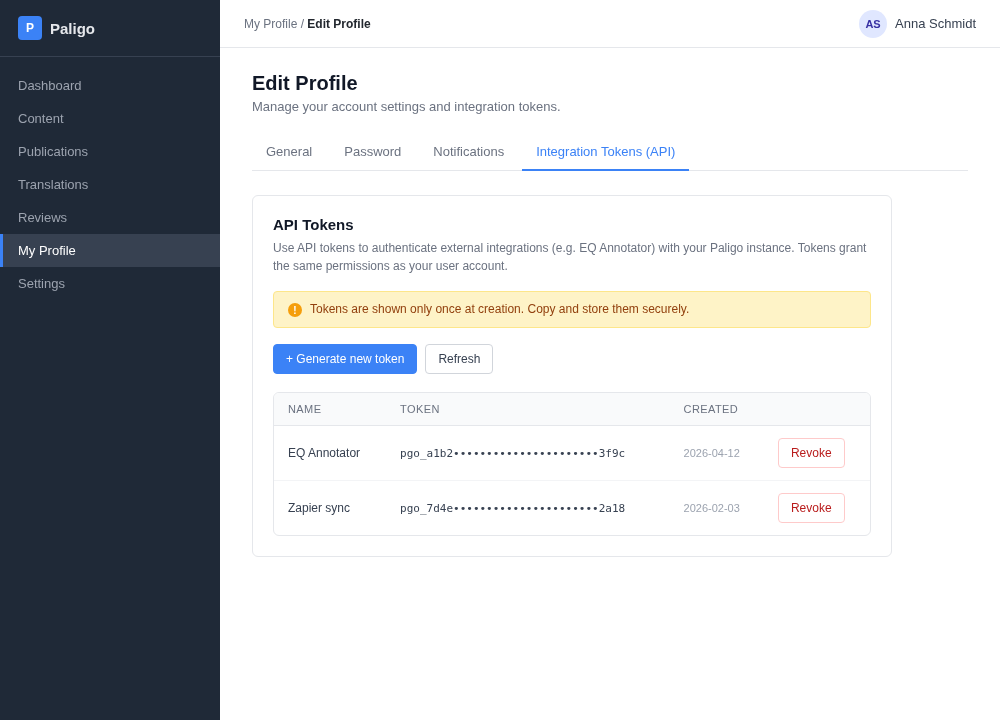
Note: You need admin or author permissions in Paligo to generate an API key. If you don't see the API section, ask your Paligo administrator for access.
Connect Paligo (creates your organisation)
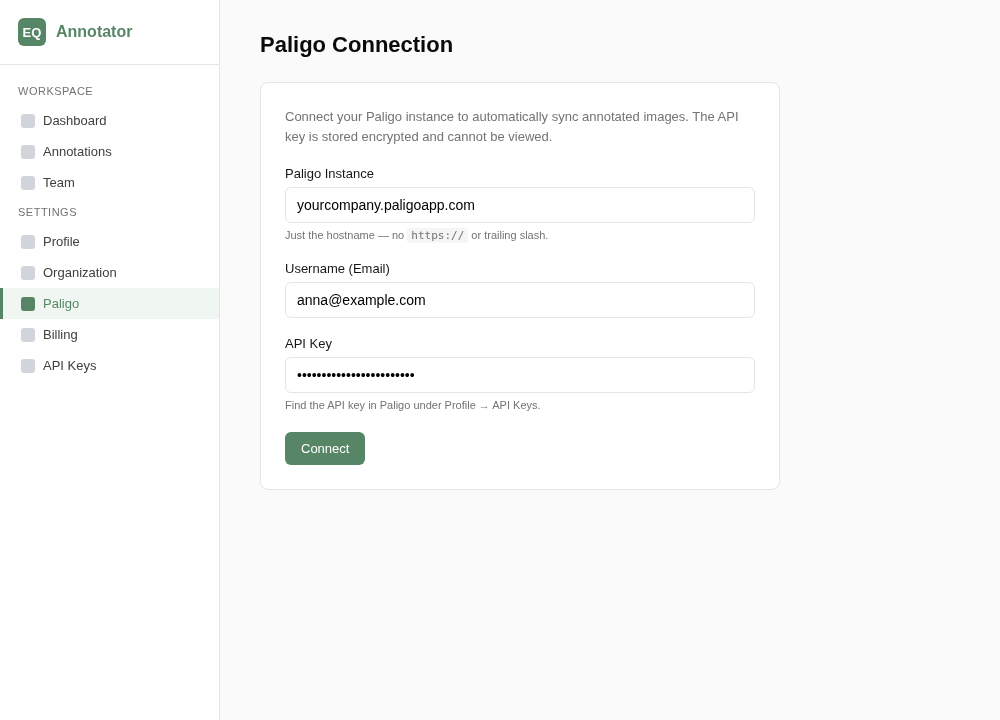
After logging in to your EQ Annotator account, the Dashboard shows a setup checklist:
- Click "Connect Paligo" on the Dashboard
- Enter your Paligo instance hostname (e.g.
yourcompany.paligoapp.com) - Enter your Paligo username (your email used to log in to Paligo)
- Paste the API key you copied in Step 2
- Click "Connect & create organisation"
EQ Annotator verifies the credentials with Paligo, creates your organisation, and starts your 90-day trial. If another organisation has already connected the same Paligo instance, you'll see a prompt to send a join request to its administrator.
Install the Chrome extension
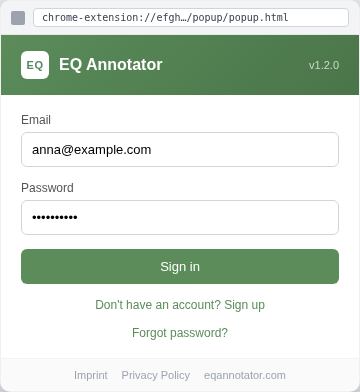
Install the EQ Annotator Chrome extension to annotate images directly inside Paligo.
- Open the EQ Annotator in the Chrome Web Store
- Click "Add to Chrome"
- Click the extension icon in your browser toolbar (puzzle piece icon → pin EQ Annotator)
- Sign in with your EQ Annotator credentials (email and password from Step 1)
Annotating your first image
Once everything is set up, annotating images is simple:
- Open any topic in Paligo that contains an image
- Click on the image — the image toolbar appears
- Click the green "Annotate" button (added by the extension)
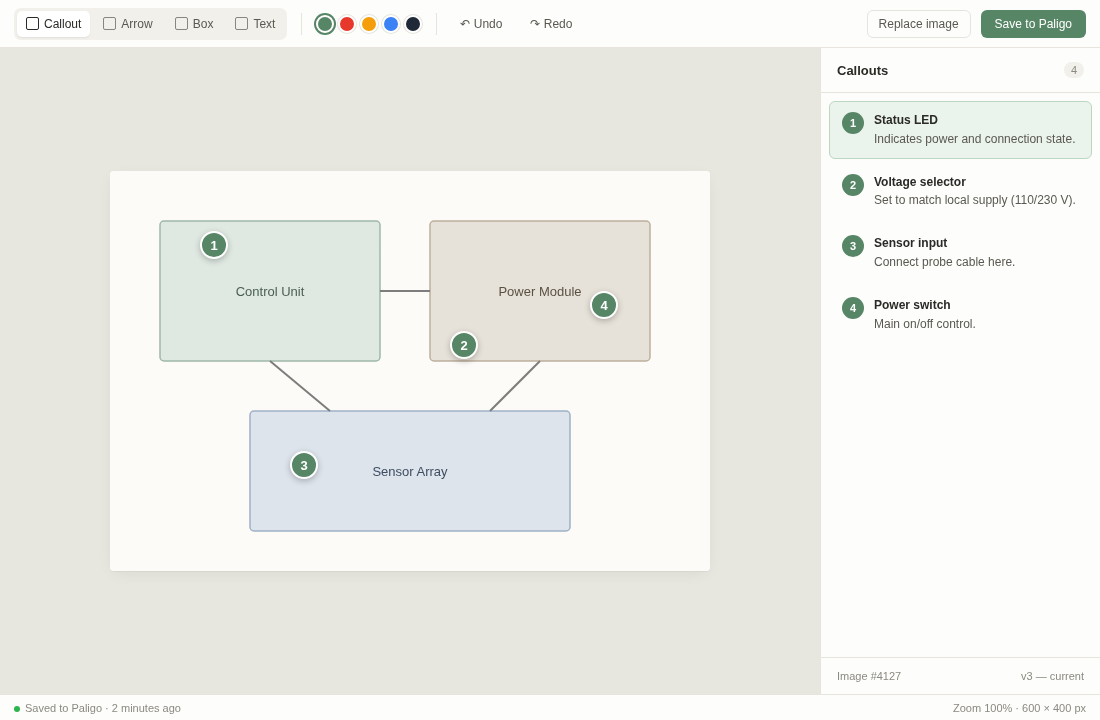
- The EQ Annotator editor opens in a new tab with your image
- Use the tools to add callouts (click), rectangles (drag), or arrows (switch tool and drag)
- Click "Save" — the annotated image is automatically uploaded back to Paligo
Tips:
- Click on the image to place a numbered callout
- Drag on the image to draw a rectangle
- Switch to the Arrow tool and drag to draw an arrow
- Click a callout to select it, then change its color or delete it
- Use Ctrl+Z / Ctrl+Shift+Z to undo/redo
- Every save creates a version — you can restore older versions anytime